UnassignedJordan Lee assigned
OwnershipAssigned
01 / Attention
Know what needs attention.
Surface unassigned and overdue inspections before they slow the day down.

Inspection Management System
Plan inspections, guide field teams, capture complete evidence, and deliver clear reports—all in one workspace.
Built for building science teams. Explore the Energy inspection workflow.
Give the office and field team one shared view of the work—what is requested, who owns it, what happened on site, and what still needs attention.
01 / Attention
Surface unassigned and overdue inspections before they slow the day down.
02 / Consistency
Guide every inspector through the right checklist and required evidence.
03 / Follow-through
Move from completed inspection to reviewable record and client-ready report without rebuilding the story.
How IMS works
Follow an Energy inspection from request and field measurements to signed envelope and duct leakage reports.
The request enters the workspace with its building, type, date, and job context.
 OFFICE → FIELD
For operations
See scheduled, completed, remaining, unassigned, and overdue work from one operational overview. Open the inspection or scheduling context directly when something needs action.
For inspectors
Open assigned work, capture the required field evidence, and submit a signed inspection record from one guided mobile flow.
01 / Open
The inspector sees only the assigned job and its context.
For managers
Review every inspection with its job context, result, checklist, evidence, location, and timestamps. Generate the report and follow patterns across inspections and reinspections.
Built for the whole team
Each company works in its own data workspace, with role-based access and a clear handoff from request to result.
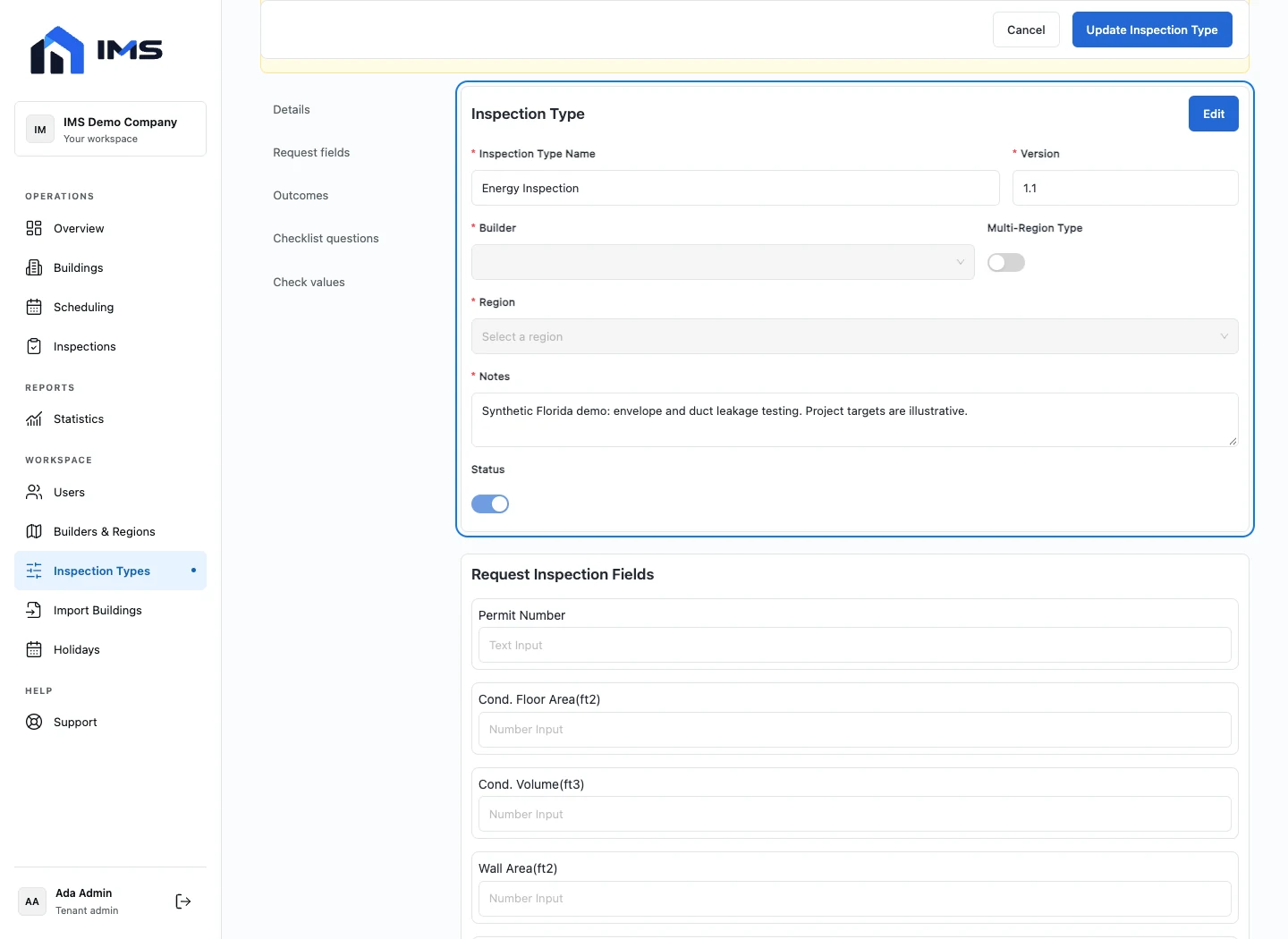
Configure the information requested, the questions asked at each inspection location, the possible outcomes, and the evidence each answer requires. Version history preserves the workflow as it evolves.
A focused product demo
See how IMS can map your request, assignment, field inspection, and reporting process in one focused demo.